
File Hosting
Supported file types
PicGo Cloud is not limited to images — you can also upload videos, audio, documents, and archives. The app checks the file type when you upload; unsupported formats are rejected with a clear message.
The maximum file size depends on your plan. See the plan comparison for details.
TIP
The list below reflects all currently supported formats. It may change with future updates. If a format you need is rejected, feel free to open a bug report.
Images
jpg, jpeg, jpe, jfif, pjp, pjpeg, png, apng, gif, webp, avif, bmp, ico, svg, tif, tiff, heic, heif
Videos
mp4, m4v, webm, mov, qt, mkv, avi, mpeg, mpg, m1v, m2v, m2ts, mp2t, ogv, 3gp, 3g2
Audio
mp3, aac, flac, wav, ogg, oga, opus, m4a, weba, aif, aiff
Documents & Archives
pdf, doc, docx, xls, xlsx, ppt, pptx, odt, ods, odp, rtf, txt, log, md, csv, json, yaml, yml, zip, rar, 7z, tar, gz, tgz, bz2
How to upload
PicGo Cloud offers two ways to upload:
- GUI app — Set PicGo Cloud as your current uploader, then drag-and-drop, paste a screenshot, or use a hotkey — same as any other uploader. See PicGo Cloud in the GUI app for details.
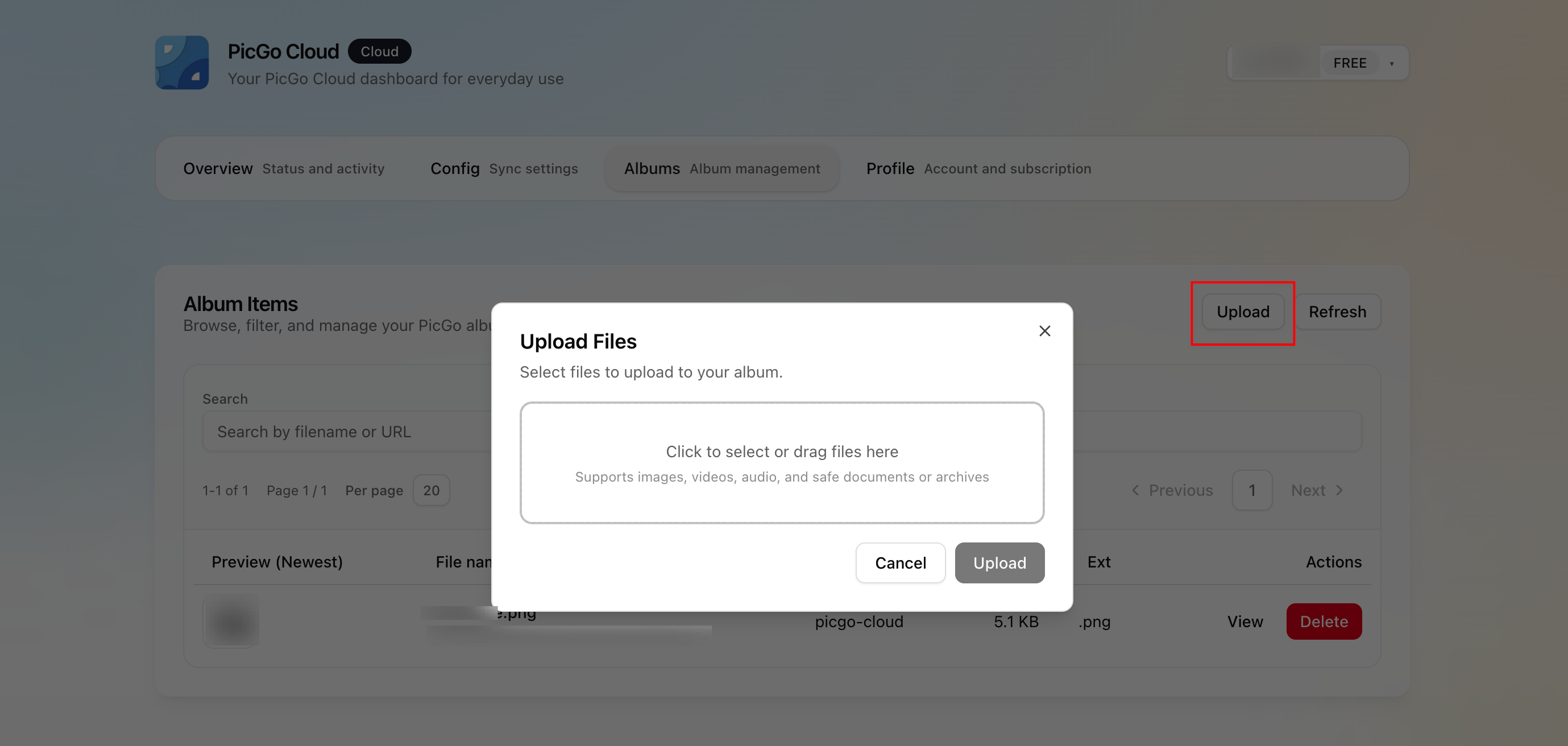
- Web portal — Log in to cloud.picgo.app, go to the Albums page, and click the upload button.
File links
After uploading, each file gets a public URL like this:
https://picgocloud.com/m/{publicId}.{ext}picgocloud.comis PicGo Cloud's default domain. Paid users (Starter and above) can set up a custom domain, which changes the link tohttps://{your-domain}/m/{publicId}.{ext}.publicIdis a randomly generated, unguessable identifier. It does not contain your user ID or upload date.- There is no public directory to browse — others cannot discover your files by guessing URLs.
File visibility
Files on PicGo Cloud are unlisted, not private:
- If you don't share the link, others won't find it: the URL uses a random ID and there's no public directory, so there's no practical way for someone to stumble upon it.
- If you share the link, anyone can open it: no login is required. This is by design — it lets you embed files in blogs, docs, and other public places.
WARNING
If you don't want a file to be seen, don't share its link. Avoid uploading sensitive content that could cause harm if the link were ever exposed.
Deleting files
You can delete files from the Albums page on the web portal or from the album view in the GUI app. Once deleted, the file's link stops working.