
Custom Domain
Custom domains let you replace the default domain in PicGo Cloud file links with your own — for example, turning https://picgocloud.com/m/xxx.jpg into https://{img.yourdomain.com}/m/xxx.jpg.
INFO
This feature can only be configured on the cloud.picgo.app web portal (Profile page). There is no custom domain UI in the GUI app.
Prerequisites
- Your plan is Starter or higher (Free does not support custom domains).
- You own a domain and can edit its DNS records.
- You're logged in to cloud.picgo.app.
Setup steps
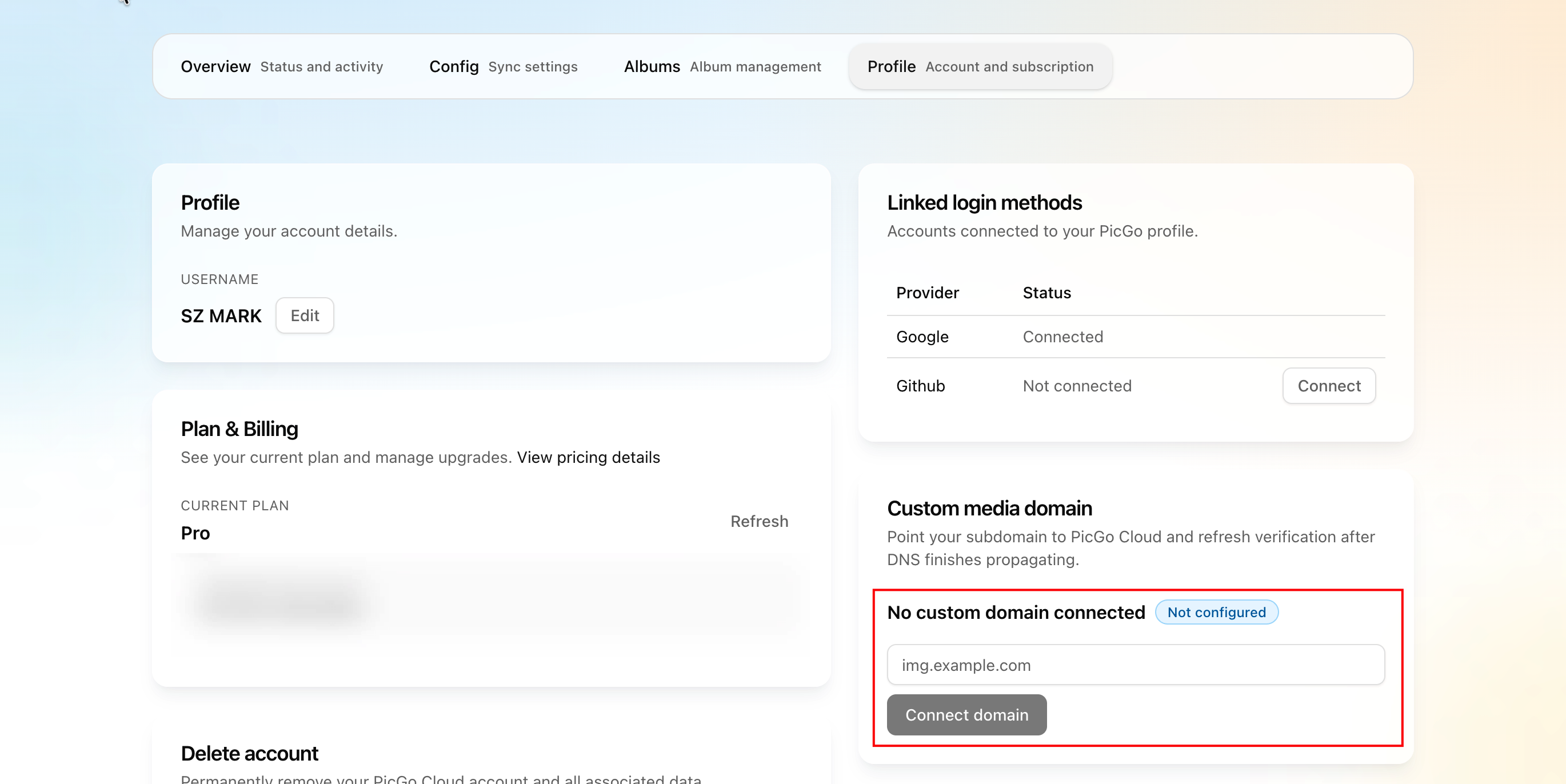
- Log in to cloud.picgo.app and go to the Profile page.
- Find the custom domain section.
- Enter the domain you want to use (e.g.
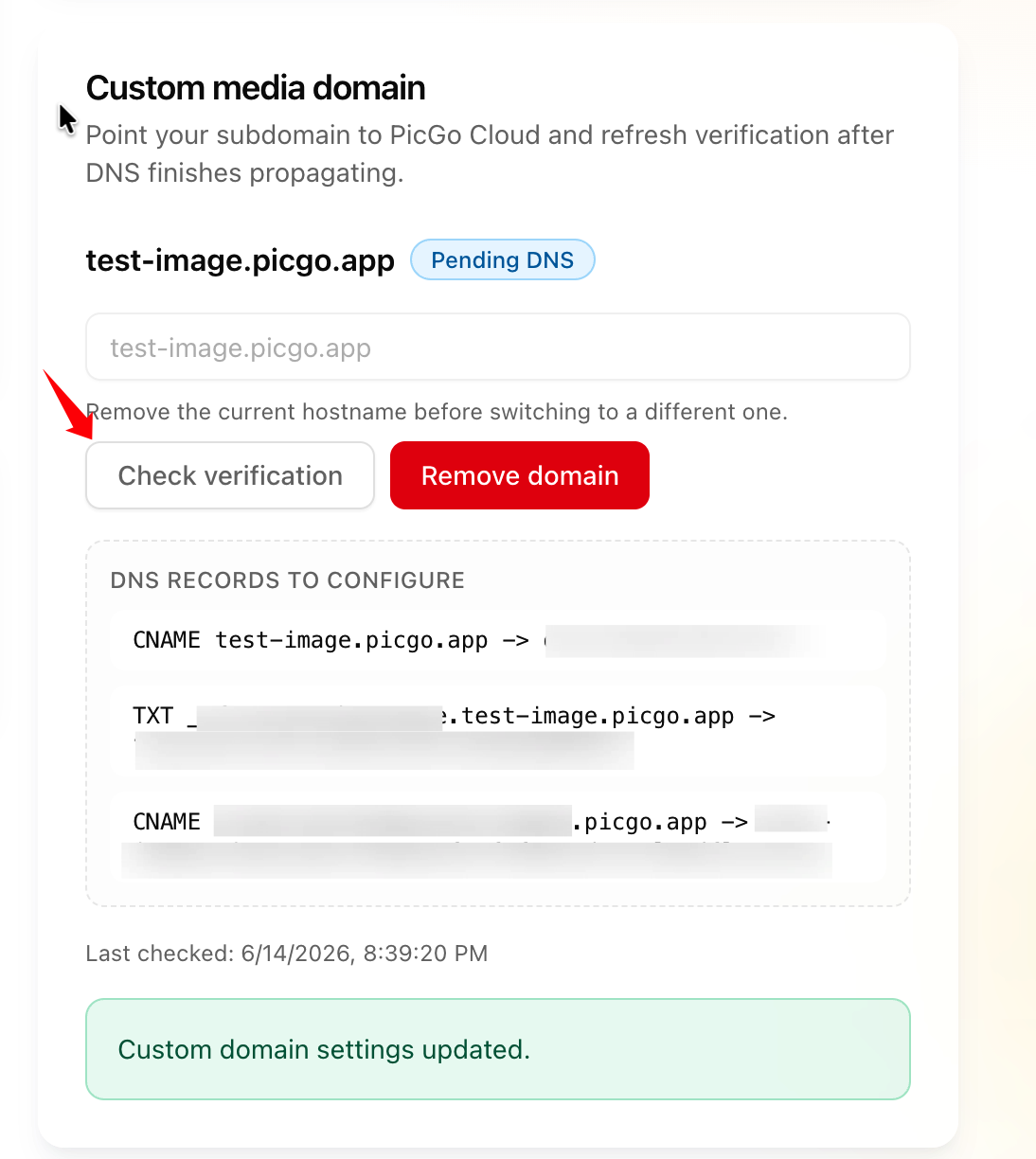
img.yourdomain.com). - The system will show the DNS records you need to add (may include CNAME and/or TXT records), with the record name and target value.
- Go to your domain registrar's DNS management (e.g. Cloudflare, Aliyun, Namesilo) and add the records.
DNS verification
After adding the DNS records:
- Wait for DNS propagation (anywhere from a few minutes to 48 hours, depending on your registrar and TTL settings).
- Go back to the Profile page on cloud.picgo.app and click "Verify".
- Once verified, the status updates accordingly.
TIP
DNS records typically take about 5 – 10 minutes to propagate after configuration. If verification keeps failing, double-check that the DNS records are correct and give it more time. Some registrars are slower to propagate.
After verification
- Your file links will use the custom domain.
- PicGo Cloud automatically provisions an SSL certificate for your custom domain (via Cloudflare) — no manual HTTPS setup needed.
Removing a custom domain
You can remove the custom domain from the Profile page. After removal:
- File links revert to the default domain.
- Any previously shared links using the custom domain will stop working.
Things to keep in mind
- Each account can bind one custom domain at a time.
- Wildcard domains (e.g.
*.yourdomain.com) are not supported. - If your account enters the frozen period, the custom domain is automatically disabled by the system. After you renew, it's automatically re-enabled — unless you removed it yourself during the frozen period. See Subscription lifecycle for details.