
Albums
Albums are how PicGo Cloud organizes your uploaded files. You can view and manage them from both the web portal and the GUI app.
Managing albums on the web
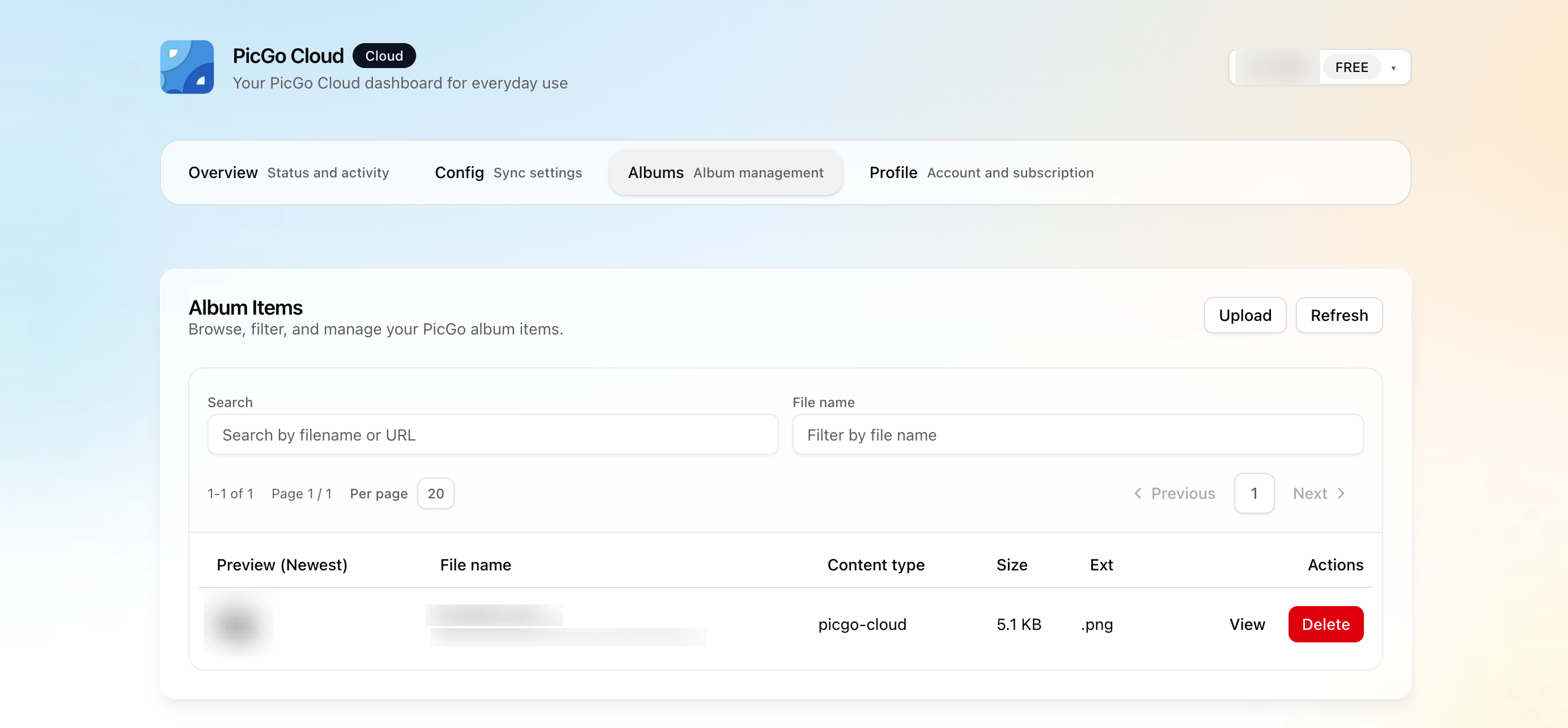
After logging in to cloud.picgo.app, go to the Albums page to:
- Browse all uploaded files (with thumbnail previews)
- Filter by file type, extension, etc.
- Upload new files
- Copy file links
- Delete files
Viewing albums in the GUI app
The GUI app's album view can display files uploaded via PicGo Cloud, and supports copying links, deleting, and more. See PicGo Cloud in the GUI app for details.
Auto-import to Cloud Album
Files uploaded through the PicGo Cloud uploader always appear in the cloud album, regardless of whether this toggle is on.
This feature is for upload records from non-PicGo-Cloud uploaders (e.g. GitHub, AWS S3, Aliyun OSS). When enabled (paid plans only), every file you upload through PicGo — no matter which uploader — has its record (URL, filename, and other metadata) synced to PicGo Cloud's album automatically. PicGo Cloud only stores these records (metadata), not the actual files from other uploaders.
The first time you turn it on, PicGo will ask whether you'd like to do a one-time import of your existing upload history.
For the toggle location, step-by-step instructions, and more details, see PicGo Cloud in the GUI app.