Advanced Usage
Upload using Command Line 2.1.0+
PicGo started supporting to use command line to call to PicGo clients for uploading since version 2.1.0.
You can use upload to upload the image on your clipboard and use upload xxx.jpg to upload the image in the specific path.
Windows
For Windows users, you can upload your image using PATH\PicGo.exe upload, where 'PATH' is your PicGo path.
macOS
For MacOS users, you can upload your image using /Applications/PicGo.app/Contents/MacOS/PicGo upload.
Linux
For Linux users, you can upload your image using PATH/PicGo.AppImage upload, where 'PATH' is your PicGo path.
PicGo-Server Usage 2.2.0+
PicGo has a small built-in server that receives HTTP requests from other applications to upload images since 2.2.0.
Default listening address: 127.0.0.1. Default listening port: 36677
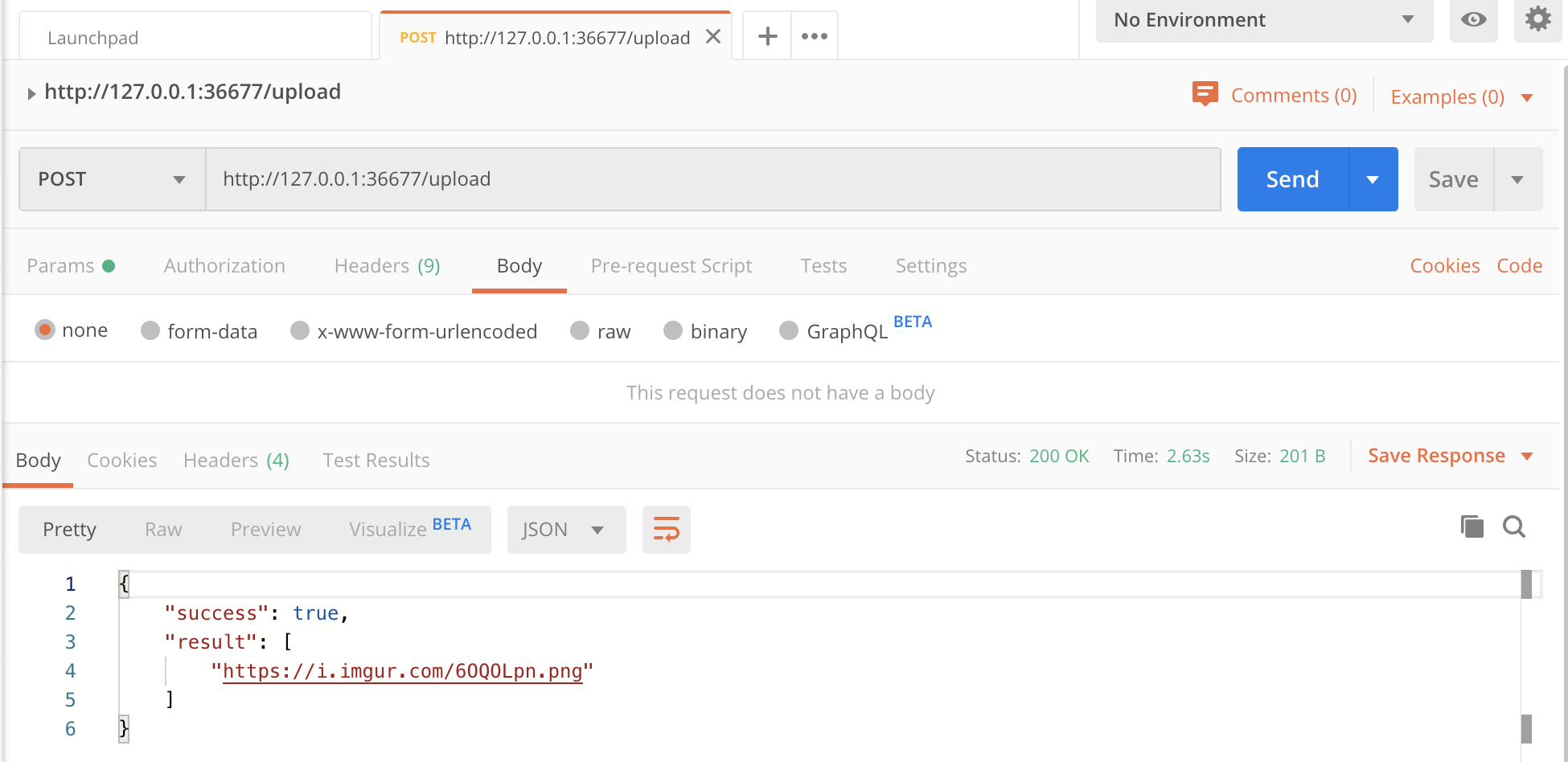
Upload the image on clipboard by calling HTTP
- method:
POST - url:
http://127.0.0.1:36677/upload(use the default setting as an example)
Then, you can upload your image.
Returned data:
{
  "success": true, // or false
  "result": ["url"]
}
Upload the specific image by calling HTTP
- method:
POST - url:
http://127.0.0.1:36677/upload(use the default setting as an example) - request body:
{list: ['xxx.jpg']}must be JSON-formatted
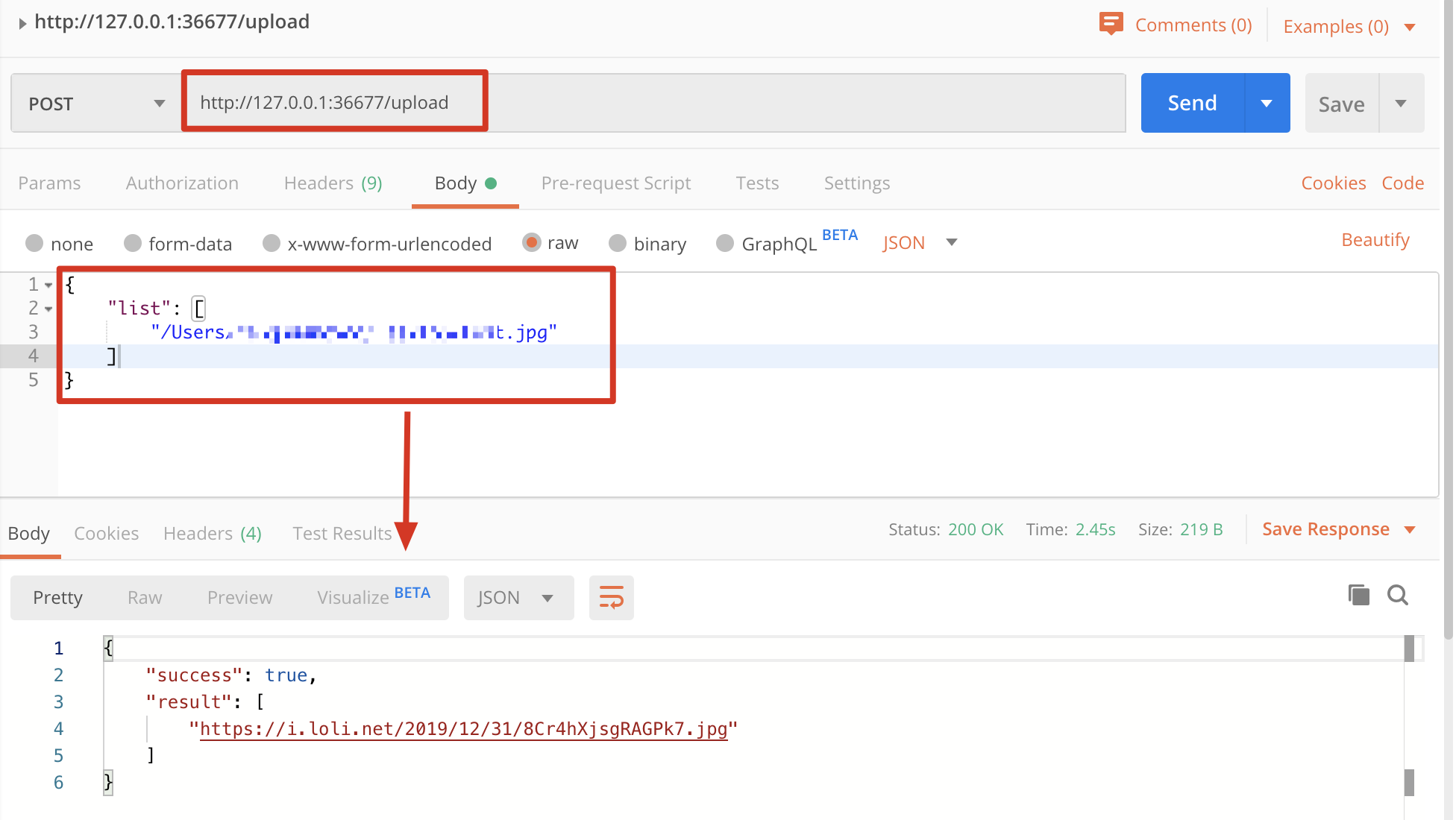
{
  "success": true, // or false
  "result": ["url"]
}
Upload images with HTTP form data 2.4.0+
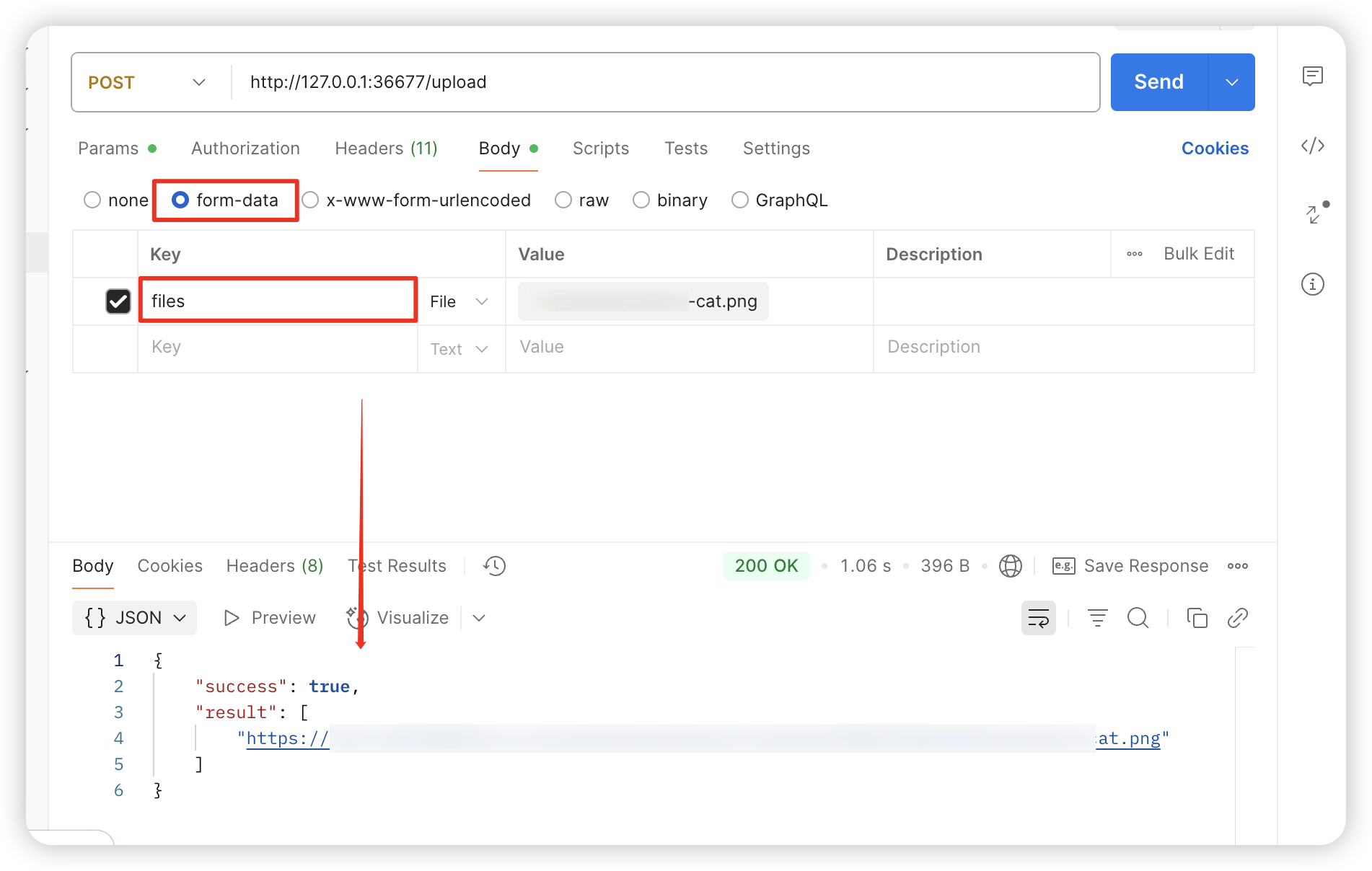
Starting from 2.4.0, PicGo-Server also accepts multipart form-data uploads. Thanks to @happy-game for the contribution!
- method:
POST - url:
http://127.0.0.1:36677/upload(using the default settings as an example) - request body: form-data whose key is
filesand value is the image file. Multiple files are supported at once.
Choose a configuration for each upload 3.0.3+
Starting with PicGo GUI 3.0.3, you can specify a saved uploader configuration in the URL of a POST /upload request without switching the default uploader in the app. The choice applies only to that request. It does not change the default uploader, any uploader's active configuration, or the local configuration file. The next upload without these parameters still uses the original defaults.
Save the configuration in PicGo first, and make sure the app is running with PicGo-Server enabled. These parameters work with all three upload methods above: clipboard images, local file paths, and multipart form uploads. Add them to the URL and keep the request body in its usual format.
| Query parameter | Description |
|---|---|
uploader | An uploader type identifier, such as github, qiniu, or picgo-cloud. When provided, lookup is limited to that type. |
configName | The name of a saved configuration. Recommended for everyday use. Chinese names are supported, and matching ignores surrounding whitespace and letter case. |
configId | The _id of a saved configuration, matched exactly. The ID stays the same when the configuration is renamed. |
Use uploader for the uploader type and configName for the name you gave a particular configuration. For example, to use a GitHub configuration named Work, add ?uploader=github&configName=Work.
Examples
The following examples use the default address and port. Replace the configuration names, IDs, and file paths with your own values.
# Upload a clipboard image using a configuration name.
curl -X POST 'http://127.0.0.1:36677/upload?uploader=github&configName=Work'

# Upload a local file using a configuration name.
curl -X POST 'http://127.0.0.1:36677/upload?uploader=github&configName=Work' \
  -H 'Content-Type: application/json' \
  -d '{"list":["/absolute/path/image.png"]}'

# Upload a file as multipart form data using a configuration name.
curl -X POST 'http://127.0.0.1:36677/upload?uploader=github&configName=Work' \
  -F 'files=@/absolute/path/image.png'

# You can also specify a configuration by ID.
curl -X POST 'http://127.0.0.1:36677/upload?configId=your-config-id' \
  -H 'Content-Type: application/json' \
  -d '{"list":["/absolute/path/image.png"]}'
Use URLSearchParams to encode Chinese configuration names. It also handles spaces and special characters such as + and &, so they are not misinterpreted when building the URL:
const url = new URL('http://127.0.0.1:36677/upload')
url.searchParams.set('uploader', 'github')
url.searchParams.set('configName', '配置一')

const response = await fetch(url, {
  method: 'POST',
  headers: { 'Content-Type': 'application/json' },
  body: JSON.stringify({ list: ['/absolute/path/image.png'] })
})
const result = await response.json()
Configuration lookup rules
| Parameters provided | Configuration used |
|---|---|
| None of the three parameters | The existing default upload configuration. |
Only uploader | That uploader's active configuration, or its first saved configuration if there is no valid active configuration. |
uploader with configName or configId | The matching configuration within the specified uploader type. |
Only configName or configId | Search all registered uploader types; exactly one configuration must match. |
Both configId and configName | Use a unique ID match first. If the ID matches no configurations or more than one, try the name. If uploader is also provided, both lookups are limited to that type. |
Different uploader types can have configurations with the same name. If both GitHub and Qiniu have a configuration named Work, passing only configName=Work is ambiguous; include uploader to specify which one to use. If the final lookup finds no match or more than one match, PicGo returns an error instead of falling back to the default uploader.
Specifying only an uploader type with no saved configuration also returns an error. However, uploader=picgo-cloud can use your current login directly. These parameters cannot switch PicGo Cloud accounts.
To find a configuration ID, use "Open Configuration Files" in PicGo settings and look up the entry's _id under uploader.<type>.configList. These parameters reference saved configurations; they are not a way to pass uploader credentials such as tokens in the URL.
Parameter errors
Parameter values must not be empty or contain only whitespace, and each parameter may appear only once in the URL. Invalid parameters, unregistered uploader types, missing configurations, and ambiguous matches return HTTP 400, with code and message explaining the cause. For example:
{
  "success": false,
  "result": [],
  "items": [],
  "code": "UPLOAD_CONFIG_AMBIGUOUS",
  "message": "The configuration name matches multiple uploader types. Specify uploader."
}
The message above is illustrative. The actual message describes the lookup scope and matching results in the configured language. See PicGo-Core upload option errors for the error codes. Successful requests keep the existing response format, with result containing the uploaded image URLs.
PicGo Mobile App Integration 2.3.0+
If you want to use PicGo on your phone, install flutter-picgo. Thanks to @hackycy for building it!
Click the information bar button in the lower-left corner of the main window and choose "Generate image host configuration QR code".
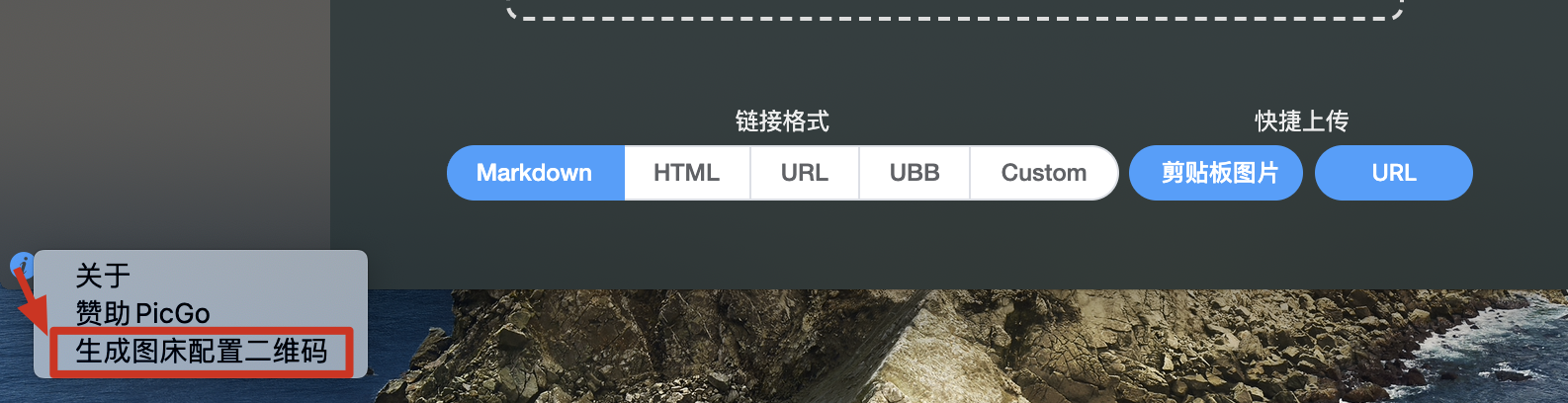
Then use flutter-picgo to scan the QR code and import your image host configuration instantly.
PicGo Repair Toolbox 2.4.0+
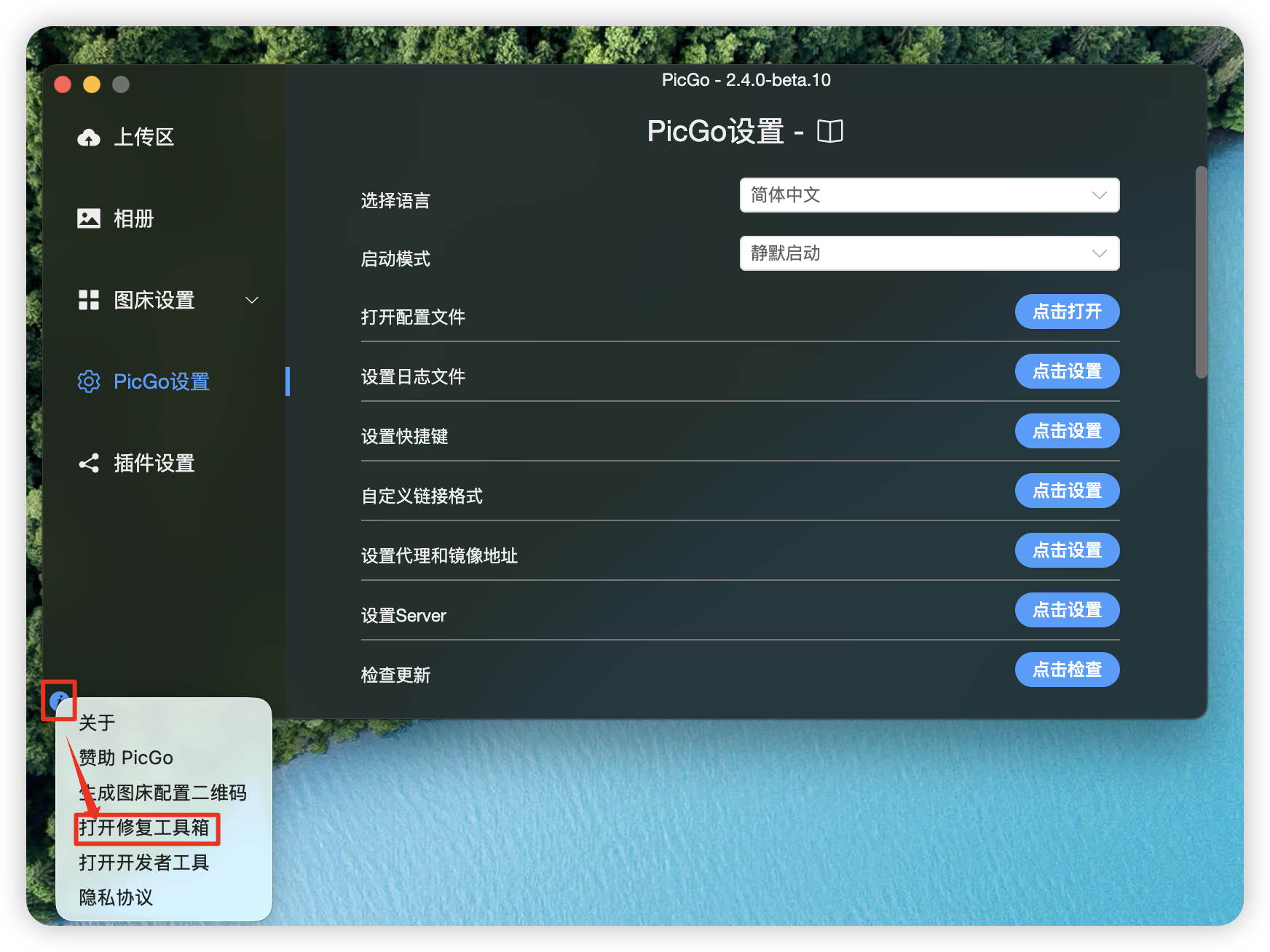
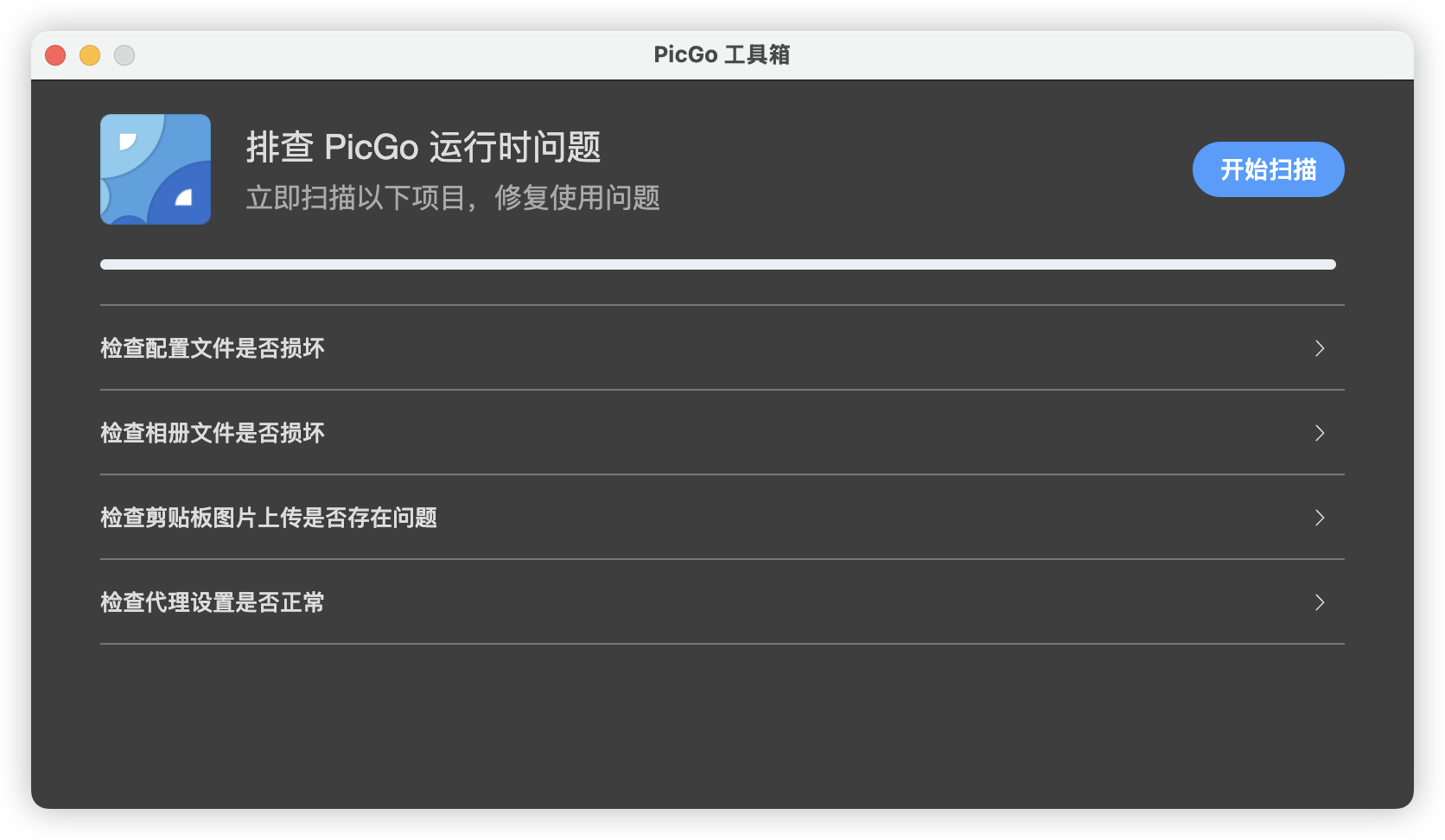
Starting in 2.4.0, you can find a "PicGo Repair Toolbox" entry under the i button on the main interface. Use it to troubleshoot and fix issues yourself when PicGo behaves abnormally.